

01 how to start managing your timesheets
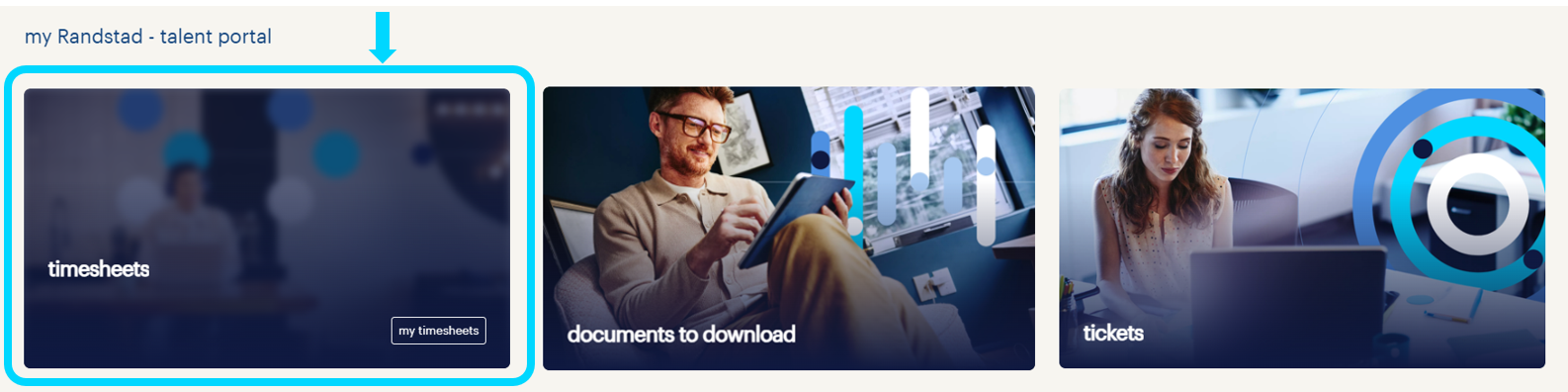
On the start screen of the my Randstad talent portal, after logging in, hover over the “timesheets” tile and then select the “my timesheets” option.
02 how to use the "timesheets" option
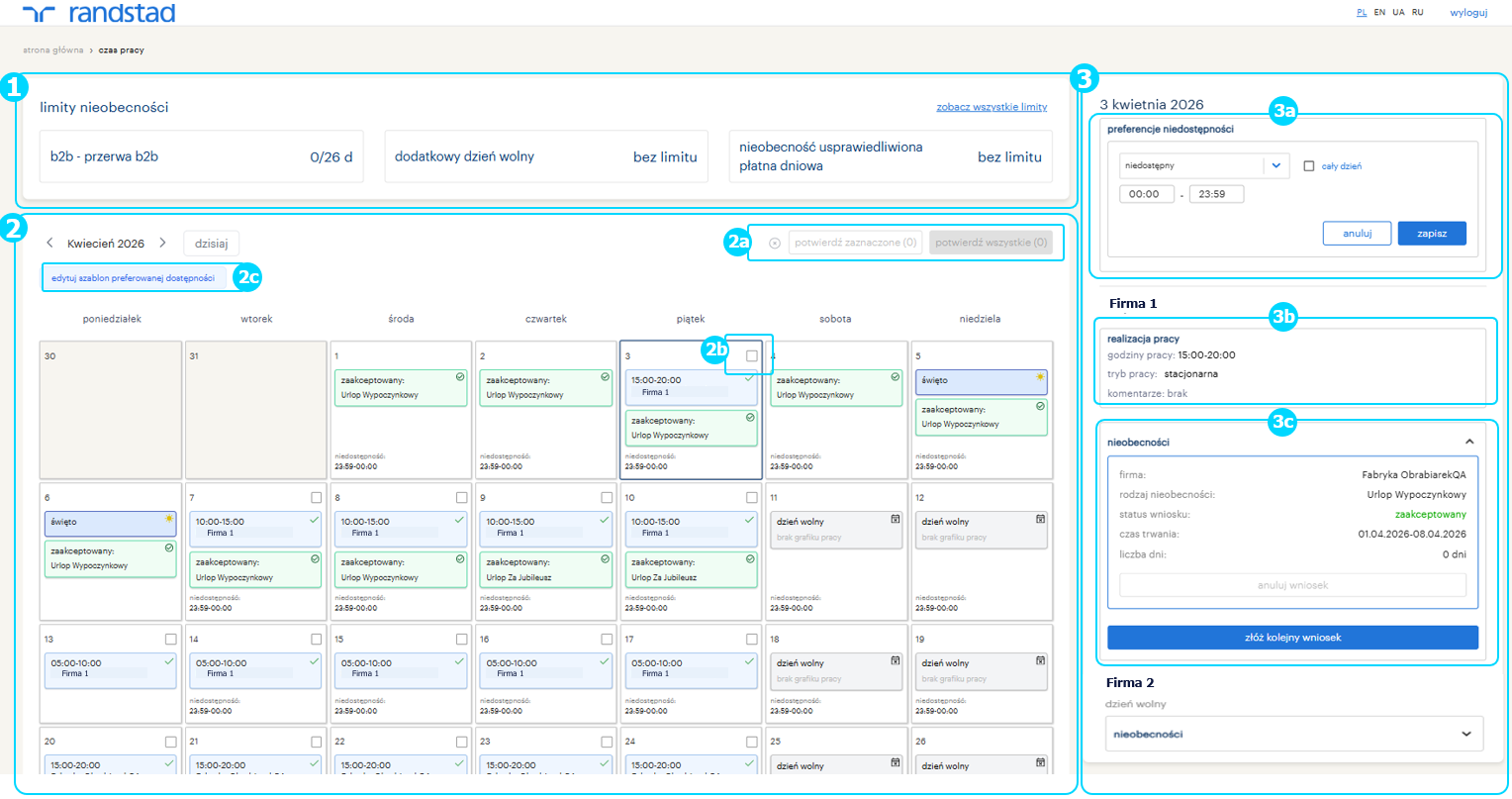
After moving to the timesheets view, you will see:
TIME OFF LIMITS SECTION (1) - which is used for the ongoing monitoring of your absence limits.
On the tile, you will see the 3 most common types of absences and their limits, and after clicking the “view all limits” button, a list of all absence limits available to you will be displayed.
---------------------------------------------------------------------------------------------------------------------------------------------------------------------------------------------------
CALENDAR SECTION (2) – for viewing the work schedule, confirming timesheets, and setting availability/ unavailability preferences.
On the calendar, you will see your work schedule for a given day; a time off, if you have reported one; information about a day off (weekend) or a holiday, as well as your individual availability/ unavailability settings.
Confirming timesheets is possible per day or collectively for the entire month – the buttons are located in the upper right corner of the calendar (2a). The “confirm selected” button is activated after checking the box for a given day in the calendar (2b). The “confirm all” button is activated when there is at least one unconfirmed day in a given month's timesheets.
Reporting preferred availability is possible via the “edit preferred availability template” button (2c) – after clicking, a window will open in which you can specify your hourly or daily availability/ unavailability.
---------------------------------------------------------------------------------------------------------------------------------------------------------------------------------------------------
DAILY TIMESHEET VIEW (3) – after clicking a specific day tile on the calendar, you will see the details of that day on the right side of the screen.
From this level, you can:
> set availability preferences for that specific day (3a)
> view work performance for that day per company (3b)
> view submitted time off requests and submit a new time off request (per company) (3c)
TIME OFF LIMITS SECTION (1) - which is used for the ongoing monitoring of your absence limits.
On the tile, you will see the 3 most common types of absences and their limits, and after clicking the “view all limits” button, a list of all absence limits available to you will be displayed.
---------------------------------------------------------------------------------------------------------------------------------------------------------------------------------------------------
CALENDAR SECTION (2) – for viewing the work schedule, confirming timesheets, and setting availability/ unavailability preferences.
On the calendar, you will see your work schedule for a given day; a time off, if you have reported one; information about a day off (weekend) or a holiday, as well as your individual availability/ unavailability settings.
Confirming timesheets is possible per day or collectively for the entire month – the buttons are located in the upper right corner of the calendar (2a). The “confirm selected” button is activated after checking the box for a given day in the calendar (2b). The “confirm all” button is activated when there is at least one unconfirmed day in a given month's timesheets.
Reporting preferred availability is possible via the “edit preferred availability template” button (2c) – after clicking, a window will open in which you can specify your hourly or daily availability/ unavailability.
---------------------------------------------------------------------------------------------------------------------------------------------------------------------------------------------------
DAILY TIMESHEET VIEW (3) – after clicking a specific day tile on the calendar, you will see the details of that day on the right side of the screen.
From this level, you can:
> set availability preferences for that specific day (3a)
> view work performance for that day per company (3b)
> view submitted time off requests and submit a new time off request (per company) (3c)