shortcuts:
tickets feature
how it works
Through the portal, you can send us all your inquiries and requests within the available categories: contracts, employment certificates, remuneration, leaves, benefits, accommodation, certificates, employee capital plans (ppk), business trips, pit forms, transport, training, work tools, medical examinations, employment-related documents, and 'share your opinion'.
your benefits
-
real-time ticket status tracking
Each ticket receives a unique number, making it easy to check what stage it is at.
-
24/7 portal availability
Submit a case at any time – without the need to visit the office or call a randstad consultant/hr representative.
-
convenience on every device
You can log in to the talent portal on both your computer and your phone.

01 how to start submitting administrative and payroll matters
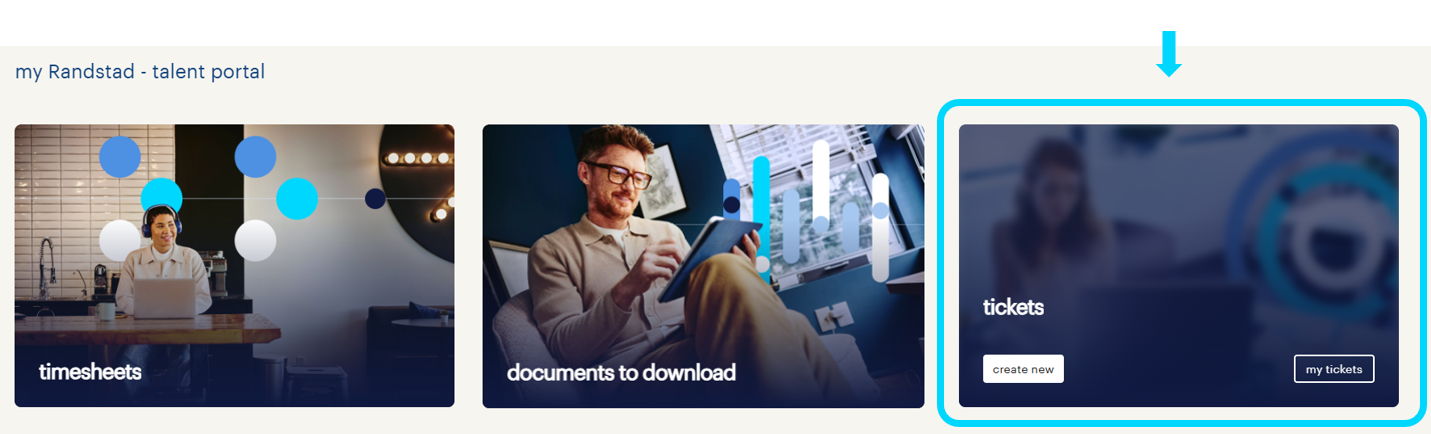
On the start screen of the my Randstad talent portal, after logging in, hover over the “tickets” tile. From here, you can choose two options::
A) create new – an option that takes you to the submission form to create a ticket.
B) my tickets – an option that takes you to a section with a list of all your tickets, where you can track their status and return to closed tickets.
A) create new – an option that takes you to the submission form to create a ticket.
B) my tickets – an option that takes you to a section with a list of all your tickets, where you can track their status and return to closed tickets.
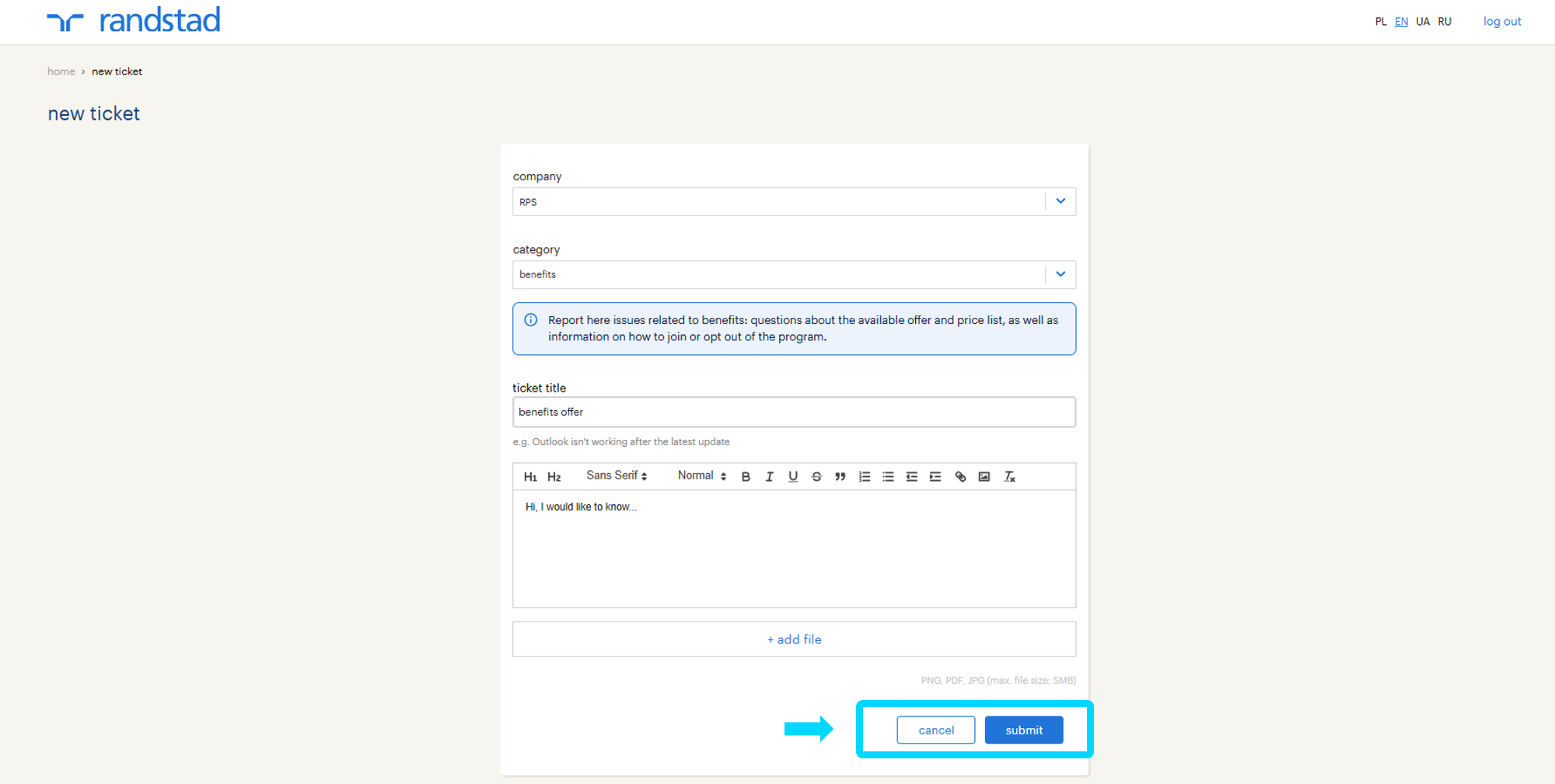
A) "create new" option
Activates the form through which you can register a new ticket in the system. In the interactive form, you define the following parameters in order:
- company: the company the ticket will concern
- category – specify the category your ticket relates to
- ticket title – provide a precise title for your ticket, this will help us understand and resolve your matter more efficiently!
- detailed ticket description – describe exactly what the ticket concerns so we can act as quickly as possible
- add file – if the situation requires it or it would be helpful, you can add an attachment
After filling out the form, click “submit” to submit the ticket to randstad or “cancel” if you wish to opt out.
- company: the company the ticket will concern
- category – specify the category your ticket relates to
- ticket title – provide a precise title for your ticket, this will help us understand and resolve your matter more efficiently!
- detailed ticket description – describe exactly what the ticket concerns so we can act as quickly as possible
- add file – if the situation requires it or it would be helpful, you can add an attachment
After filling out the form, click “submit” to submit the ticket to randstad or “cancel” if you wish to opt out.
B) “my tickets” option:
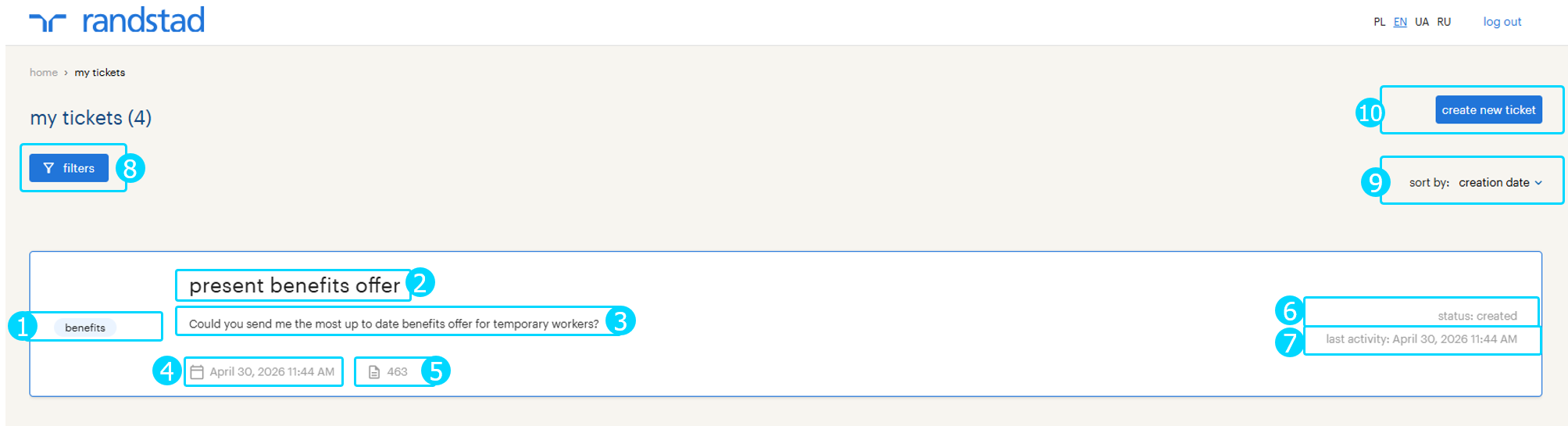
The “my tickets” option is a list of all the matters you have submitted. On the tiles in the list, you will find:
1 - ticket category
2 - ticket title
3 - ticket description
4 - ticket date
5 - ticket number
6 - ticket status
7 - last activity
Additionally, on the ticket list screen, you can also use:
8 - filters, which will make it easier for you to find a specific ticket. click the “filters” button to expand them. you can filter tickets by keyword, creation date, status, employer, and ticket category.
9 - sorting the ticket list by creation date or status
10 - navigating to the submission form and creating a new ticket
1 - ticket category
2 - ticket title
3 - ticket description
4 - ticket date
5 - ticket number
6 - ticket status
7 - last activity
Additionally, on the ticket list screen, you can also use:
8 - filters, which will make it easier for you to find a specific ticket. click the “filters” button to expand them. you can filter tickets by keyword, creation date, status, employer, and ticket category.
9 - sorting the ticket list by creation date or status
10 - navigating to the submission form and creating a new ticket
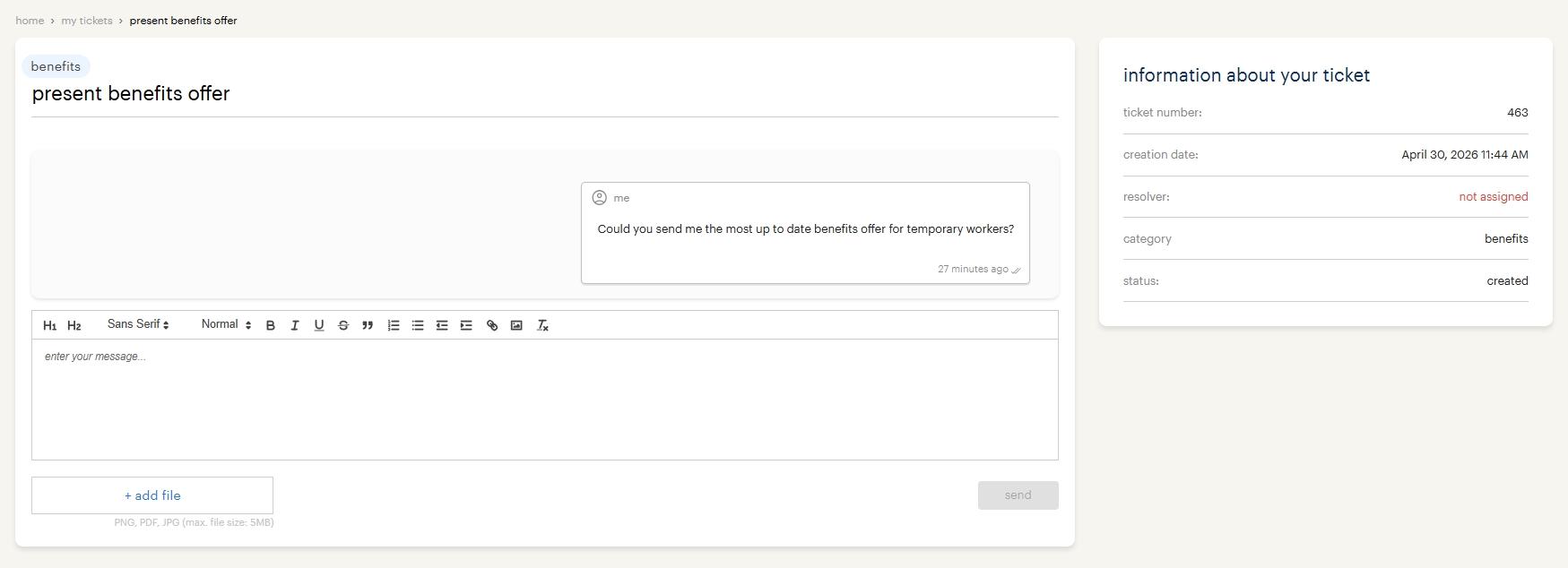
detailed ticket view
Clicking on a specific ticket tile will take you to its detailed view. There you will find:
- communication panel – a place where the response from a dedicated randstad guardian will appear. in this window, you can freely hold a conversation regarding your matter and send necessary attachments.
- information about your ticket – a clear summary of the most important data, such as: ticket number, creation date, assigned person, category, and current status.
This gives you full control over the process and allows you to track every stage of resolving your matter in real time.
NOTE: If there is a new activity from the Randstad operator/ HR representative in your ticket, you will see a “new” message on the ticket tile in the list, as well as in the ticket details.
- communication panel – a place where the response from a dedicated randstad guardian will appear. in this window, you can freely hold a conversation regarding your matter and send necessary attachments.
- information about your ticket – a clear summary of the most important data, such as: ticket number, creation date, assigned person, category, and current status.
This gives you full control over the process and allows you to track every stage of resolving your matter in real time.
NOTE: If there is a new activity from the Randstad operator/ HR representative in your ticket, you will see a “new” message on the ticket tile in the list, as well as in the ticket details.